 By Stewart Berry
24 January 2024
Maptitude is the best Microsoft Streets and Trips™ alternative. The trip planning tools in Maptitude identify optimal routes for travel and deliveries. They calculate the distances between destinations and produce driving directions. Streets & Trips has been discontinued and Maptitude is the best replacement.
The top 4 benefits of this Streets & Trips replacement are:
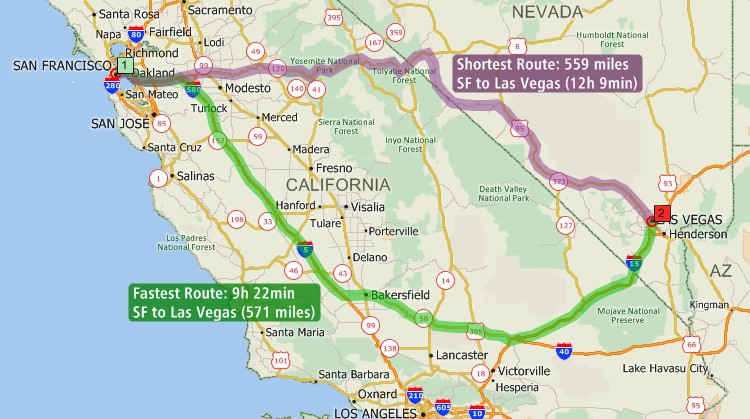
As the alternative to the Microsoft Streets and Trips software, Maptitude calculates the fastest routes between waypoints.
 |
“We purchased Maptitude for a yearly mapping project. We are a non-profit charitable organization and our volunteers deliver gift bags to all 930 member families. It was my task to map 85+ delivery routes to all member families in our local area. I was seeking a substitute for Microsoft Streets and Trips. Maptitude is like Streets and Trips on steroids. I think there is probably not much Maptitude can't do...But I like the ability to customize the map points with a staggering array of colors and shapes. I can save the maps, make PDFs, optimize routing. Everything I need—plus. Thank you Maptitude.”
|
The top 7 benefits of this Streets & Trips alternative are:
A trip can involve many different stops/waypoints. Maptitude helps you decide the best order to visit them. Most importantly, Maptitude lets you choose what type of route you want:
The best route can mean different things to different people. Often the best route is the one that is the fastest. Others prefer the path that is shortest in terms of mileage. Or a trip that maximizes use of highways or avoids population centers:
Maptitude has the features of Microsoft Streets and Trips 2013 and can meet all the above demands. Maptitude uses an accurate and up-to-date street database. Maptitude handles one-way streets, and supports display of these on the map.
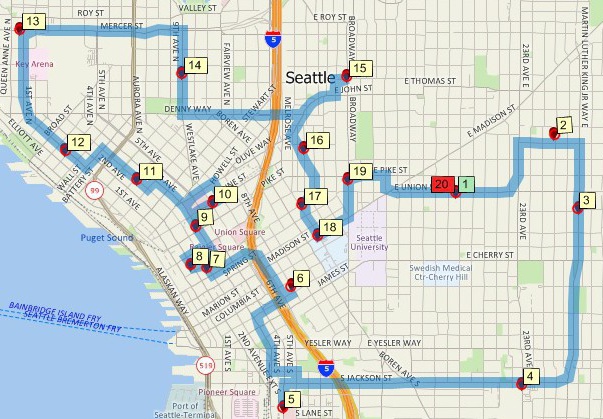
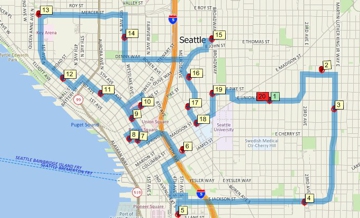
Minimum driving time route map that services multiple locations using Maptitude, the alternative to Microsoft Streets and Trips
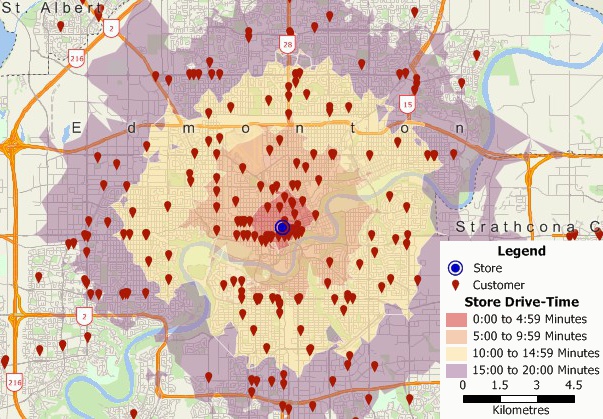
Geocoded customer locations map and drive-time rings using Maptitude, the alternative to MS Streets and Trips 2013
You can easily get started planning your route by simply clicking in a map on all the places you want to visit. You can also locate stops/waypoints by typing an address. Or automatically by using addresses in an Excel spreadsheet, table, or database. Select the customers to visit in a customer point layer, and Maptitude determines the best route to use to visit them.
There are also additional best route tools that allow you to:
| Feature | Streets & Trips 2013 | Maptitude |
|---|---|---|
| Create custom maps with your own data | ||
| Plan multi-stop routes | ||
| Calculate distances between destinations | ||
| Produce driving directions | ||
| Plan multi-vehicle routes | ||
| Create multiple drive-time rings for multiple points | ||
| Accurate and up-to-date street database | ||
| Offline viewing | ||
| Online viewing | ||
| Advanced data analysis and visualization tools | ||
| Real-time collaboration and data sharing features | ||
| Heat maps | ||
| Sales territory mapping | ||
| Demographic analysis | ||
| Site Selection | ||
| Price | Relatively inexpensive | More expensive, but with wider range of features and capabilities |
| Availability | Discontinued since 2013 | Actively developed and supported |
In the dynamic sector of field sales, efficient route planning isn't just a matter of convenience—it's a strategic necessity. For businesses seeking a robust replacement for Streets and Trips in optimizing field sales rep routing, Maptitude emerges as the ultimate solution. Maptitude provides features and advantages that make it the best replacement for Streets and Trips, particularly for businesses focused on elevating their field sales operations.
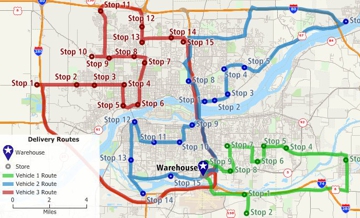
Field sales reps often have a multitude of stops in a single day. The advanced routing capabilities of Maptitude outperform other applications in optimizing routes with multiple stops, considering factors such as traffic patterns and distance. This results in more efficient and time-effective routes, allowing reps to maximize client visits and minimize unproductive travel time. Maptitude can even route and optimize a multiple-vehicle fleet simultaneously.
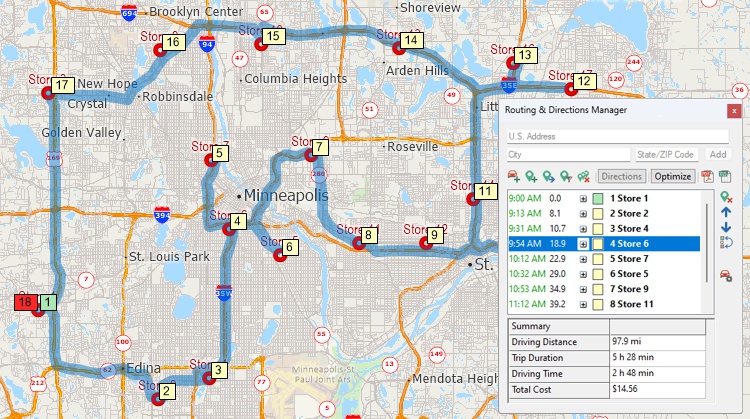
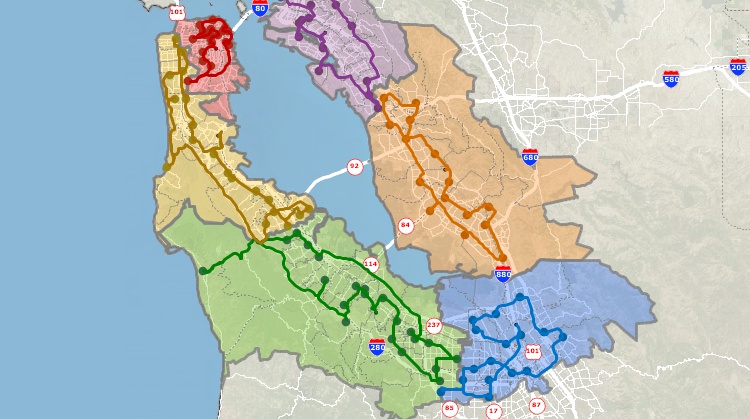
Maptitude is purpose-built for businesses, and its territory management capabilities set it apart. For field sales teams, defining, analyzing, and optimizing sales territories is integral. Maptitude excels in providing the tools needed to streamline territory management, ensuring that each field sales rep is strategically covering their designated areas for maximum outreach.
 |
“Maptitude is helping our organization plan our field service territories and control our travel and response time.”
|
Beyond route planning, Maptitude offers a comprehensive suite of data analysis tools crucial for businesses. Field sales reps can leverage demographic data, customer information, and sales data to make informed decisions. This data-driven approach enhances route planning, enabling reps to prioritize high-value prospects and opportunities efficiently.
Maptitude understands that businesses have unique requirements. Its customization options go beyond basic mapping, allowing businesses to tailor maps to their specific needs. Whether it's incorporating branding elements or highlighting key data points, Maptitude ensures that the mapping tool aligns seamlessly with the distinct requirements of each business.
Integration with existing business datasets is crucial for maximizing the utility of a mapping tool. Maptitude supports the import and export of most data formats, facilitating seamless integration with customer databases, CRMs, sales data, or any other relevant information. This ensures that businesses can leverage their existing data alongside the mapping tool.
Field sales reps require tools that are not only powerful but also user-friendly. The intuitive interface of Maptitude ensures that reps can quickly and easily plan their routes, navigate through the software, and make on-the-fly adjustments as needed. This user-friendly approach enhances the practicality of the tool for sales professionals operating in the field.
 |
“They continually outpace the industry with customer support and provide it in a timely manner. If you are looking for a premier organization that provides cutting edge product and service, Caliper is the company to call. I have taken our organization to an entirely different level with the capabilities of Maptitude. I'm able to plot sales or potential and pull data out of the map to effectively summarize and give results.”
|
Maptitude recognizes the critical role it plays in business operations. The tool is backed by a responsive customer support team that understands the unique needs and challenges faced by businesses. This level of support ensures that businesses can rely on Maptitude to address any issues promptly, minimizing disruptions to their field sales operations.
 |
“We use Maptitude extensively for running complex Territory Alignment scenarios. The depth of the product, its total utility and functionality is immense. Import-Export capability with Excel is seamless. It is easy to work with and Maptitude support is second to none. My complements to the Maptitude team: They have created a solid product and it is one of the best software investments we have made as an organization.”
|
Maptitude is the best replacement for Streets and Trips,
particularly for businesses focused on optimizing field sales rep
routing. Its tailored territory management, data-driven
decision-making tools, optimized routing capabilities, customization
options, seamless data integration features, user-friendly
interface, and responsive support collectively position it as an
indispensable tool for businesses aiming to elevate the efficiency
of their field sales operations.
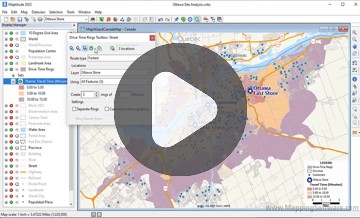
Drive-Time Rings
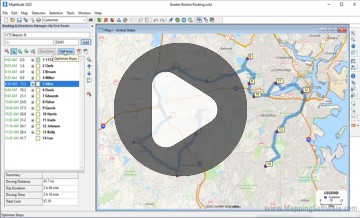
Shortest Paths and Routes
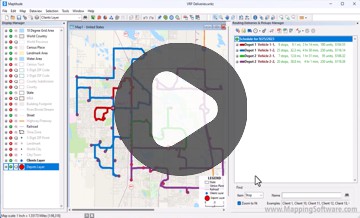
Fleet Routing and Logistics
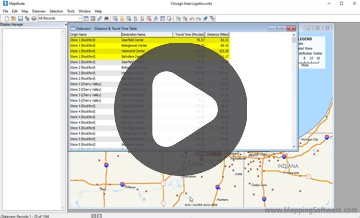
Travel-Time Tables
Maptitude can import waypoints from Streets & Trips. A point layer is created that can be used with the Routing Manager to create directions.
A popular free resource for Streets & Trips was Larry Petersen's POI Mega File – pushpin collections for truckers, RV'ers, and travelers. This includes a huge amount of location information for travelers in North America (a European AutoRoute version is also available). Although intended for travelers using Streets & Trips, it can also be used with and imported into Maptitude.
Microsoft Streets & Trips has been discontinued, and it is unclear what specific program, if any, has replaced it. There are many different mapping and navigation programs available, both from Microsoft and from other companies, so it is possible that one of these programs may offer similar functionality to Microsoft Streets and Trips. Some popular alternatives include Maptitude mapping software, Google Maps, Waze, and MapQuest. It is worth noting, however, that these programs may not be direct replacements for Microsoft Streets & Trips, and they may have different features and capabilities.
Learn how to download and install Microsoft Streets and Trips 2013 in the Maptitude Learning Portal.

Learn more about Maptitude Buy Now
Maptitude is also an alternative to Microsoft AutoRoute and the discontinued Microsoft MapPoint.

|
“We have found Maptitude to be a really useful piece of software. It allows us to quickly and easily represent various data geographically, and the ease of functionality and ability to layer data makes it really user friendly. It has, among other things, helped us develop our sector-leading delivery service and understand areas that require focus from our sales teams.”
|
Learn more about Maptitude to see how you and your team can use Maptitude to make informative and insightful maps!
Schedule a Free Personalized Demo

 Check out our G2 Reviews


 Call Us: